
Song Requests: Let Fans Pick the Next Tune from Your Tip Station
Someone always wants to hear their song. With Song Requests in Gig Portal, they pick it from the same iPad they already use to tip—and you see every request in a live Song Queue while you play.
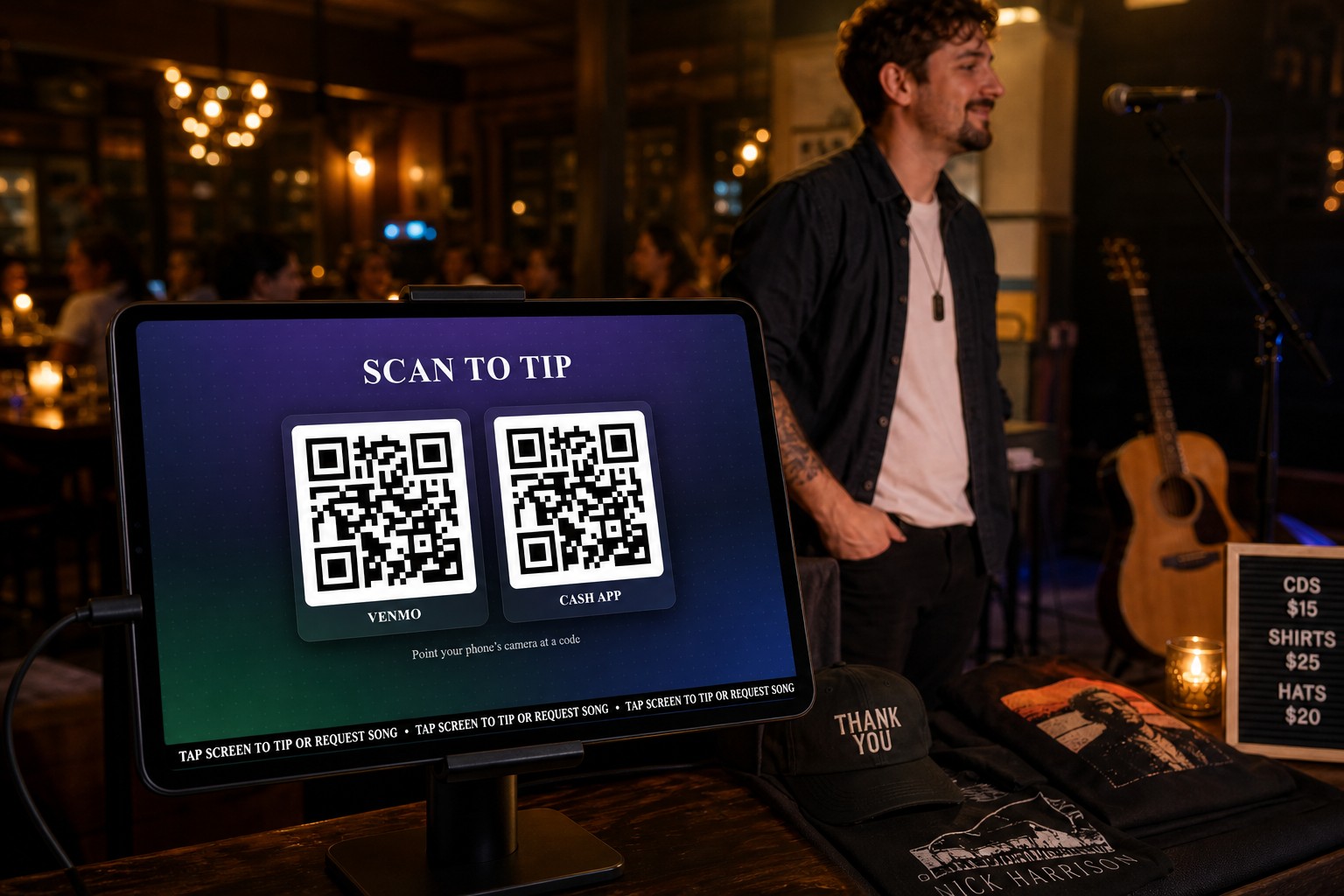
Your Digital Tip Station still shows Venmo and Cash App. The scrolling bar now invites fans to tip or request a song.
A cash jar cannot take a request. A shouted title from the back of the room often gets lost. Song Requests turns that messy moment into a simple tap: fans browse your list, type a special request, tip when you require it, and the song lands in your queue so you always know what is next.
This guide walks through what fans see on the tablet, how tip amounts work, and how to turn Song Requests on before your next gig.
What Song Requests Adds to Your Tip Station
Song Requests is not a separate kiosk. It lives on the same full-screen iPad you already prop up for tips. When requests are on, the slideshow ticker can read Tap Screen to Tip or Request Song. A tap opens your tip page—with a clear Request Song button at the top.
- One tablet, two jobs: tips and requests from the same stand
- Your song list: titles, artists, search, and sort
- Optional tip amounts: free songs, paid songs, or a mix
- Special requests: fans can type a song that is not on the list
- Live Song Queue: every request shows up in your dashboard as it happens
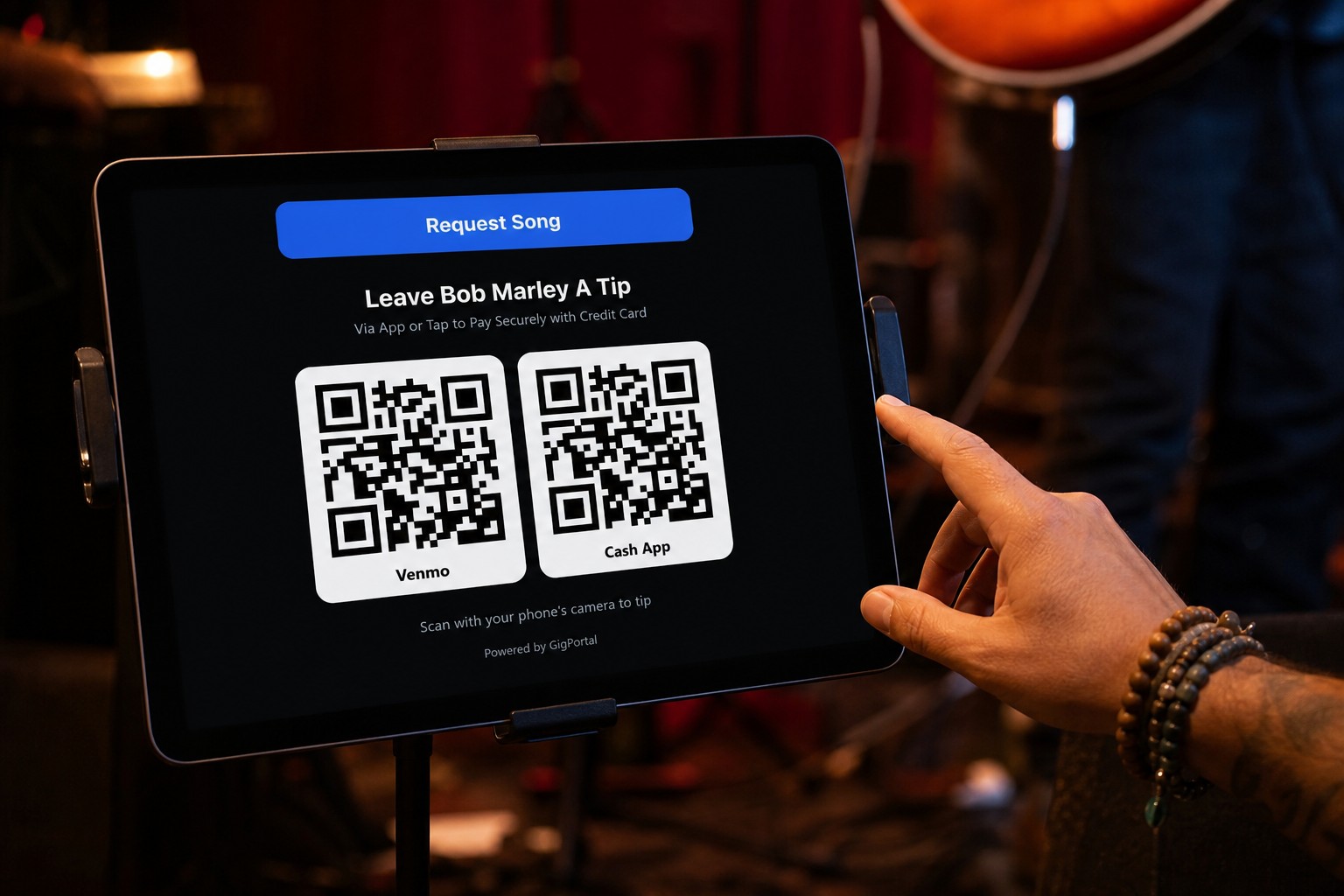
The tip page still shows Venmo and Cash App. The blue Request Song button is the new call to action.
How Fans Request a Song
The fan flow is built for a crowded room and a tablet they have never used before.
- They tap the Tip Station screen (or scan the QR to open it on their phone).
- They hit Request Song.
- They choose Pick from Song List, Special Request, or Tip Performer if they only want to leave a tip.
- If you attached a tip amount, they scan Venmo or Cash App before the request is queued.
- After about 20 seconds idle, the iPad returns to your Digital Signage slideshow on its own.
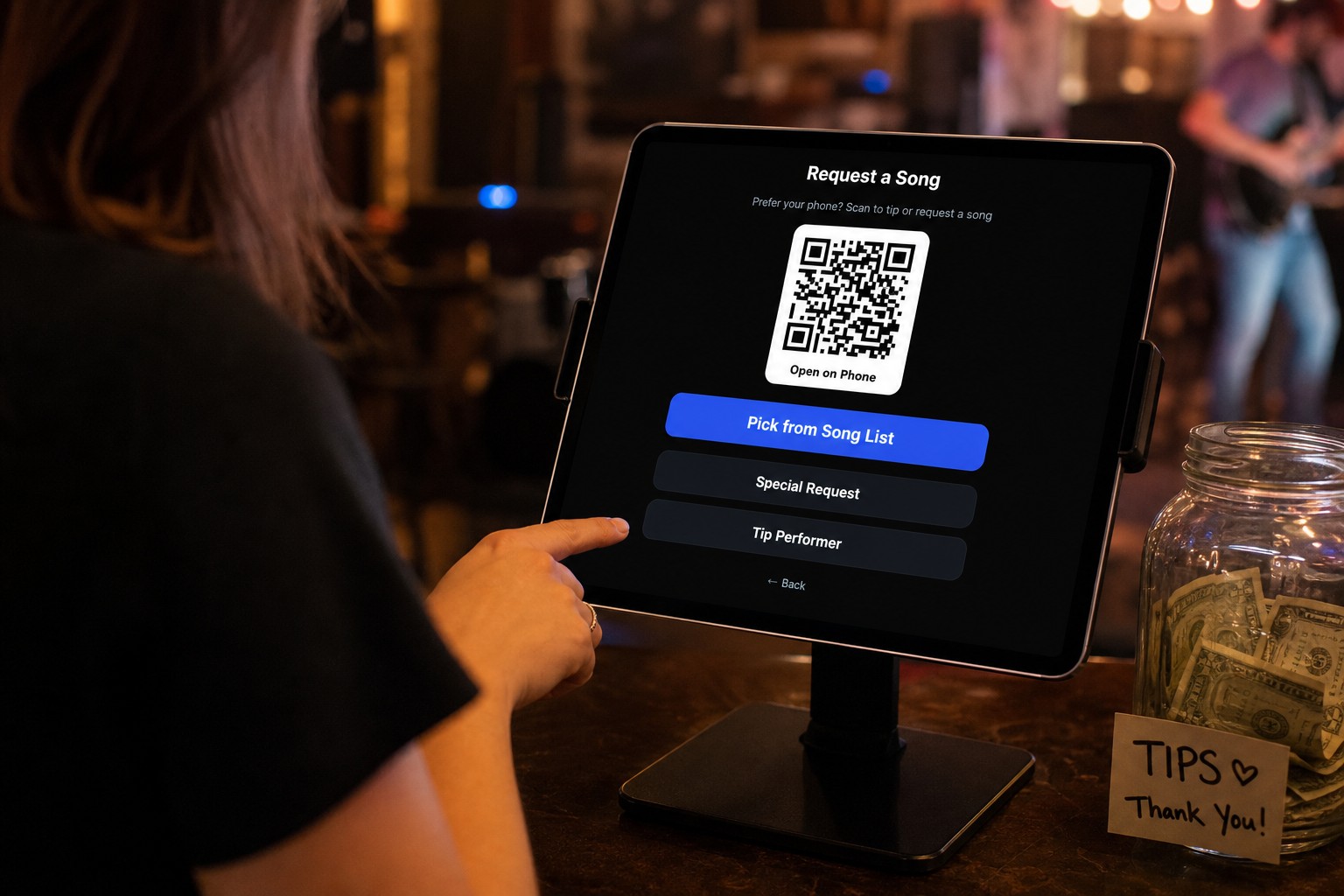
Prefer the phone? Fans can scan Open on Phone and finish the request without crowding the stand.
Build a Song List With Optional Tip Amounts
In the dashboard, open Song Requests and add titles one at a time or import a PDF or Word list. Each song can be free, or you can set a tip amount—handy for the big, requested numbers you would rather not play all night for nothing.
Fans search and sort the list on the tablet. A green Free label and an orange dollar amount make the choice obvious from a few feet away.
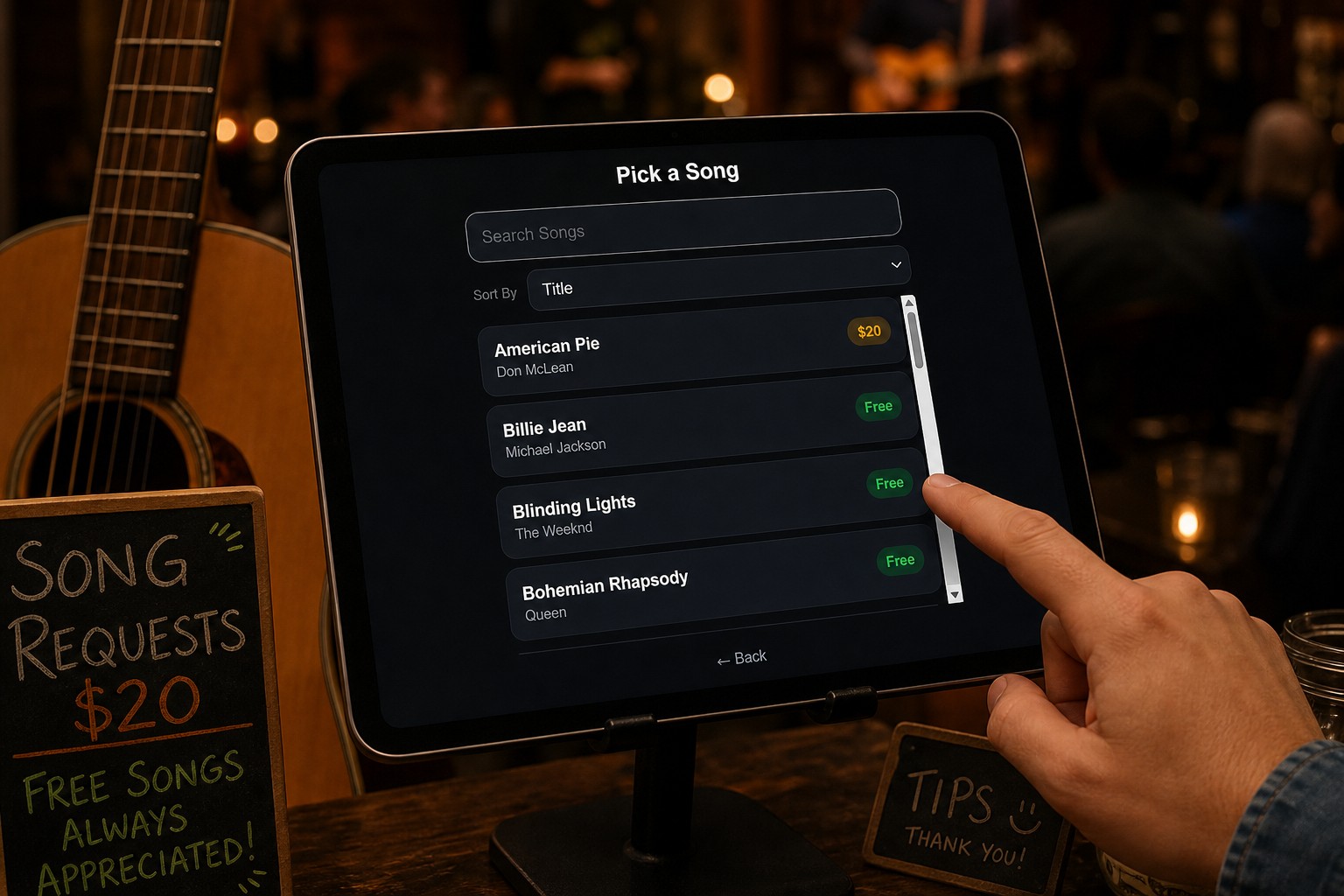
Search, sort by title, and mix free songs with paid requests so the list matches how you actually take the room.
Special Requests and a Live Song Queue
Not every favorite is on the list. Turn on Special Requests and fans can type a title. You can require a tip for those too. If Song Requests is on and the list is still empty, typed requests are available automatically so you can start taking them before the catalog is finished.
Every successful request appears in your Song Queue. Play from the top, skip what you cannot do, and keep the set moving without guessing who asked for what.
How to Turn It On
Setup lives in the same Gig Portal dashboard as your Tip Station.
1. Enable Song Requests
Open Song Requests in the dashboard and turn requests on. That is what adds Request Song to the kiosk and lets the ticker mention requests.
2. Build or import your list
Add songs with title, artist, and an optional tip. Import a set list if you already keep one in Word or PDF.
3. Decide on special requests
Allow typed requests, and set a tip amount if you want a gate on songs that are not in the catalog.
4. Launch the same iPad you already use
Open your Digital Tip Station on the tablet. Fans tap, request, and tip. You watch the queue from your phone or another browser while you play.
Pair It With Your Digital Tip Station
Song Requests is strongest when the screen is already doing the asking. A Digital Tip Station loops photos, videos, and reviews, then a tap opens tips and requests. Between songs, fans are looking at a glowing iPad instead of an empty jar.
Venmo and Cash App still go straight to you. Card tipping is optional. The request only joins the queue after any required tip step is done.
Make Requests Part of the Show
The tablet does the collecting. You still make the moment: glance at the queue, call out a name or a title, and play it. That loop—ask, tip, hear it live—is why Song Requests earns more than a shouted request ever will.
Ready to try it? Start a free 14-day trial of Gig Portal, add a few songs, and let the next room pick the set from your iPad.
Let Fans Request Songs from Your Tip Station
Build a song list, set tip amounts, and run a live Song Queue on the same iPad that takes Venmo and Cash App tips. Start a 14-Day Free Trial—no credit card required.
14-Day Free Trial